2026 Expert Solution for How to Encrypt Emails in New Outlook
If you’re asking “how to encrypt email Outlook” this guide walks you through the exact steps and the most common “why don’t I see the Encrypt button?” fixes.
What “Encrypt” means in New Outlook
In the new Outlook experience, the Encrypt button typically uses Microsoft Purview Message Encryption (OME) policies provided by your Microsoft 365 tenant (for work/school accounts) or encryption features included with certain consumer subscriptions.
Step-by-step: How to encrypt an email in New Outlook (Windows)
Step1: Open New Outlook (the “new” Outlook for Windows interface).
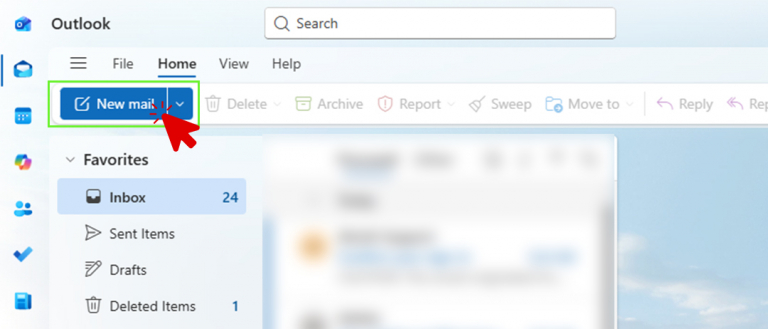
Step 2: Click New mail to start a message.
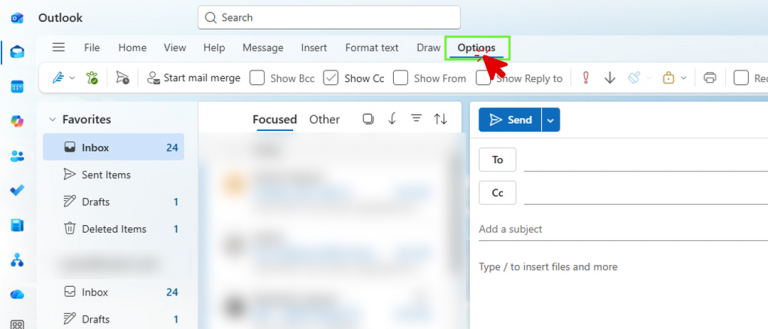
Step 3: In the compose window, go to the Options tab.
Step 4: Select Encrypt (lock icon).
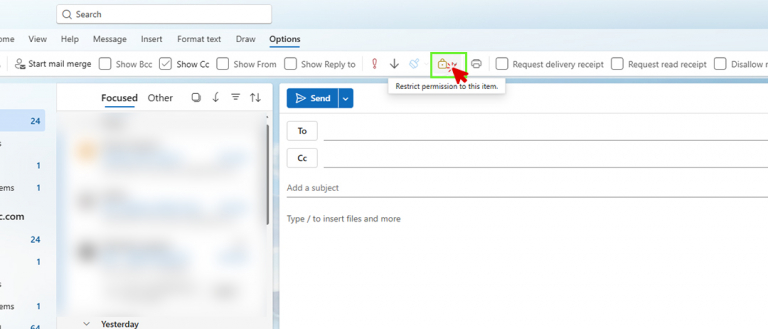
Step 5: Choose the encryption option you need, such as:
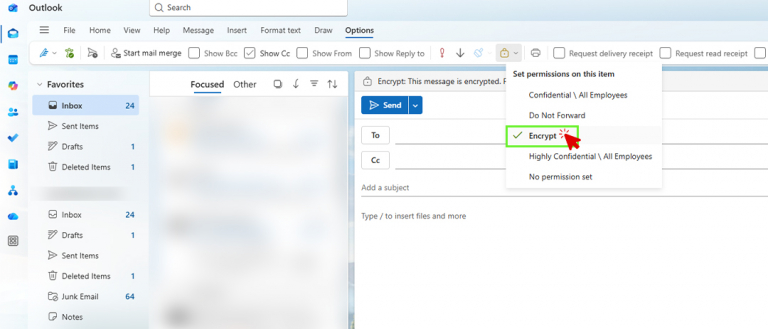
Step 6: Finish your email and click Send.
Expert Solution Provided by Managed IT Service Provider
If encrypting email in Outlook feels confusing or the Encrypt option is missing, you are not alone. These are some of the most common questions we hear from our own clients.
This is where managed IT services can help. A trusted IT partner can ensure your email is secure, properly configured, and aligned with best practices so you can focus on your work with confidence.
Other Helpful Guides
Expert Solution for How to Find External Links in Excel
Expert Solution for How to Disable Microsoft Office Click To Run